Showing a Card at the CheckoutEine Karte an der Kasse zeigen
Scan Mode fills the screen with the barcode on a dark background, and lets you flip between a shop’s rewards card and its gift card.Der Scan-Modus zeigt den Barcode bildschirmfüllend auf dunklem Hintergrund und lässt Sie zwischen Kundenkarte und Geschenkkarte wechseln.
Quick start
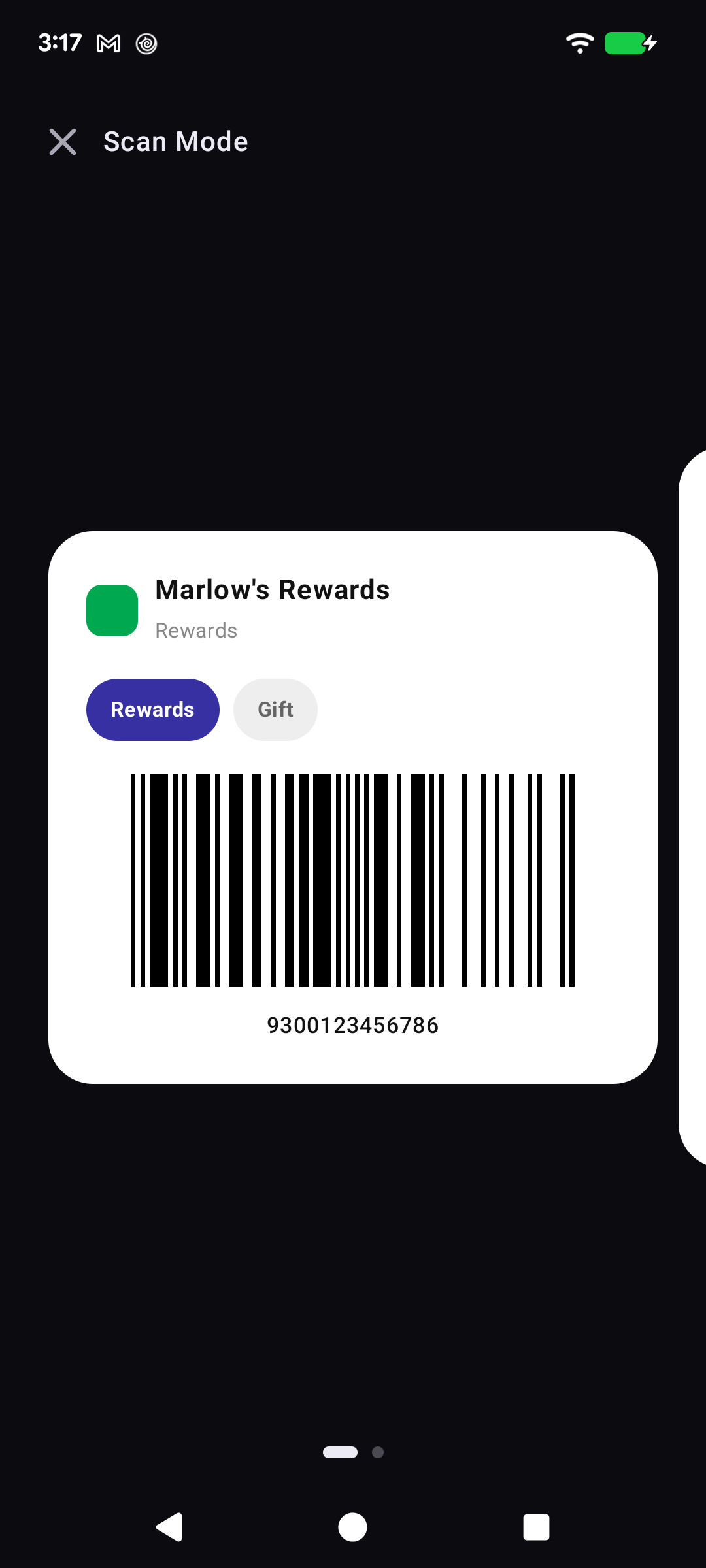
Tap a card in your wallet and Scan Mode opens: the barcode, large, on a dark background, with the number printed underneath. Cardly turns your screen to full brightness so the scanner can read it. Hold the phone over the scanner. Tap ✕ when you are done.
The barcode fills the panel, with the card number below it.
That is the whole screen. Below: flipping to a gift card, and what to do when the scanner will not read your phone.
Going deeper
Rewards and Gift on one screen
If a shop has given you both a rewards card and a gift card, the two chips near the top flip between them without leaving the screen. Scan Rewards for the points, then tap Gift to pay.
You can swipe sideways to do the same thing — the dots under the card show which of the pair you are on, and each panel is labelled with that card’s own name and type, so there is no guessing which one the scanner is about to read.
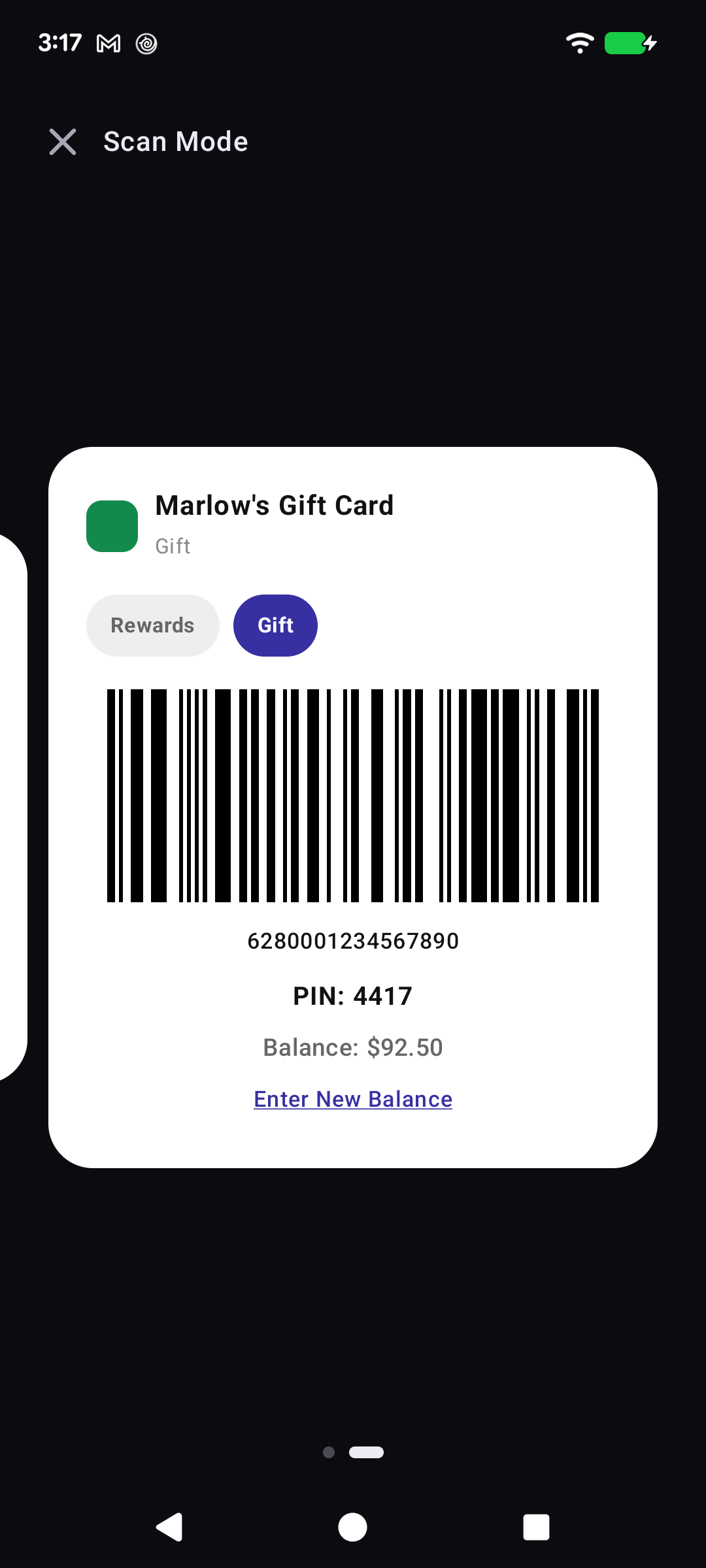
On the Gift side you also get the PIN and the remaining balance.
The gift side shows the PIN and the balance, plus Enter New Balance so you can update what is left the moment you have paid, while you are still standing there.
When the scanner struggles
Cardly already pushes your screen to full brightness while the barcode is up, so that part is handled.
Hold the phone flat and still, a little above the glass.
Wipe the screen — smudges and glare are the usual culprits.
If it still will not read, the number is right there on screen for the cashier to key in.
Opening details instead
If you would rather a tap opened the card's own screen instead of jumping straight to the barcode, turn off Open Scan Mode on tap in Settings.
Schnellstart
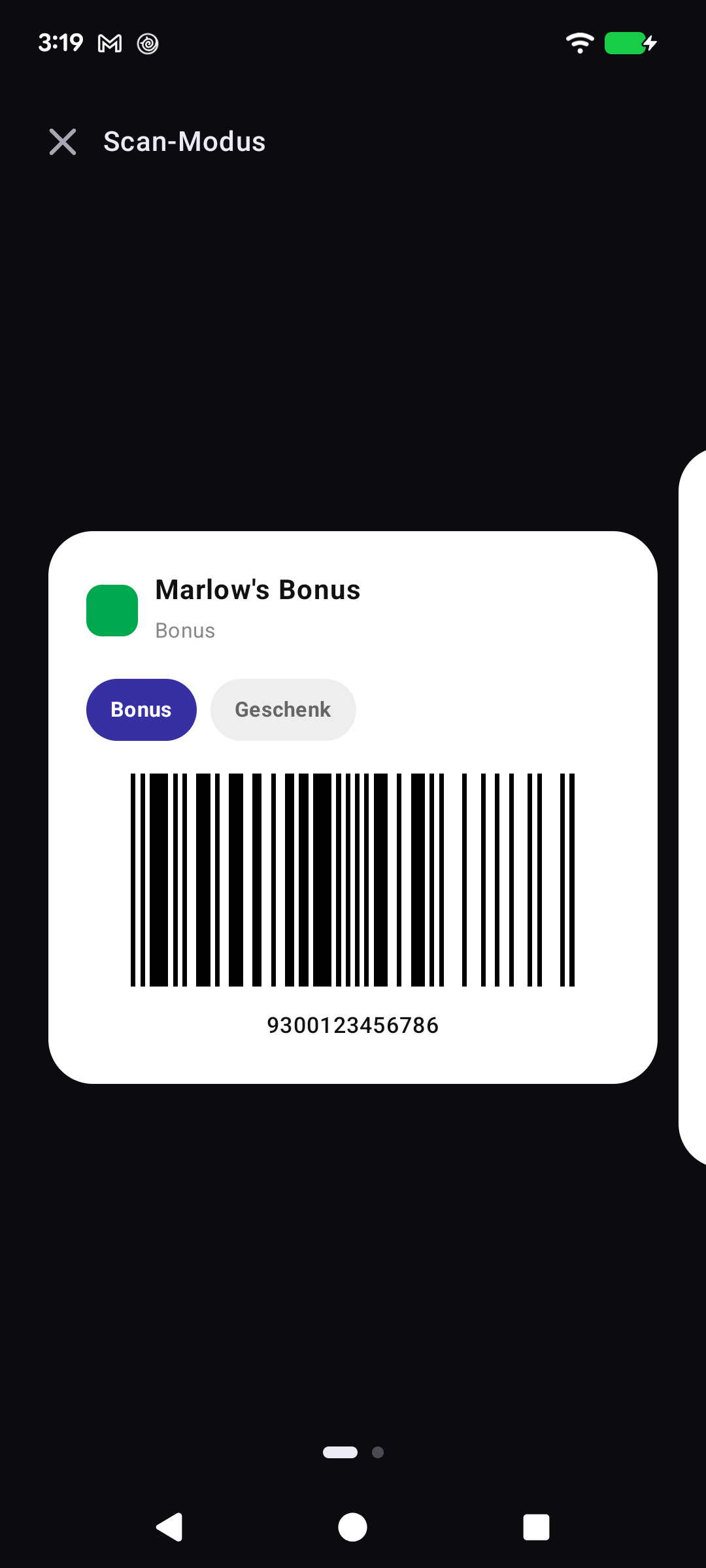
Tippen Sie in Ihrer Brieftasche auf eine Karte, und der Scan-Modus öffnet sich: der Barcode groß auf dunklem Hintergrund, die Nummer darunter. Cardly stellt den Bildschirm auf volle Helligkeit, damit der Scanner ihn lesen kann. Halten Sie das Telefon über den Scanner. Zum Schließen tippen Sie auf ✕.
Der Barcode füllt die Fläche, darunter steht die Kartennummer.
Das ist der ganze Bildschirm. Weiter unten: der Wechsel zur Geschenkkarte und was hilft, wenn der Scanner nicht liest.
Tiefer eintauchen
Rewards und Gift auf einem Bildschirm
Wenn ein Geschäft Ihnen sowohl eine Kundenkarte als auch eine Geschenkkarte gegeben hat, wechseln die beiden Chips oben zwischen beiden, ohne den Bildschirm zu verlassen. Scannen Sie Rewards für die Punkte und tippen Sie dann auf Gift, um zu bezahlen.
Dasselbe erreichen Sie durch seitliches Wischen — die Punkte unter der Karte zeigen, wo Sie sich befinden, und jede Ansicht trägt den eigenen Namen und Typ der Karte. So ist immer klar, welche Karte der Scanner gleich liest.
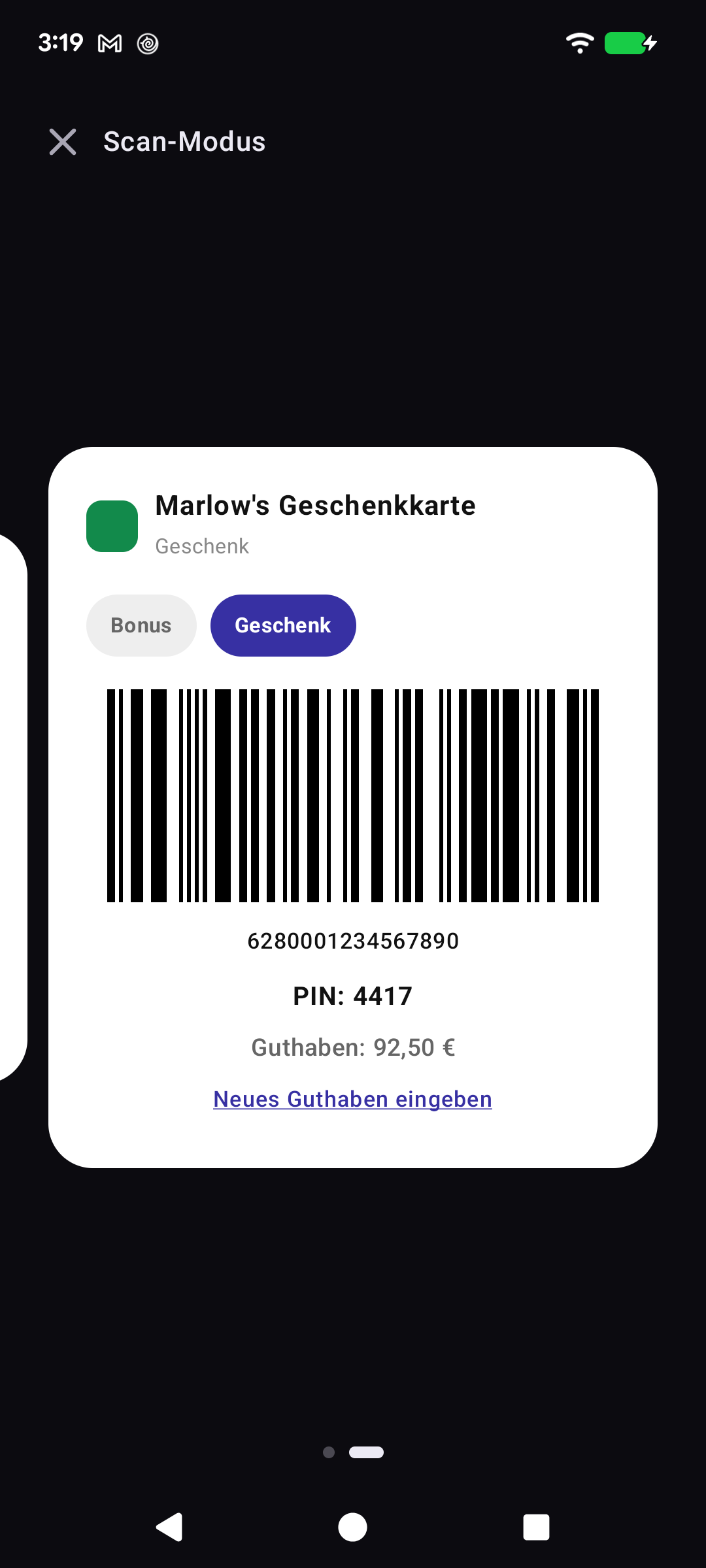
Auf der Gift-Seite sehen Sie zusätzlich PIN und Restguthaben.
Die Gift-Seite zeigt PIN und Guthaben sowie Neues Guthaben eingeben — so aktualisieren Sie den Restbetrag direkt nach dem Bezahlen, während Sie noch an der Kasse stehen.
Wenn der Scanner Probleme hat
Cardly stellt den Bildschirm bereits auf volle Helligkeit, solange der Barcode angezeigt wird — das ist also schon erledigt.
Halten Sie das Telefon flach und ruhig, etwas über dem Glas.
Wischen Sie den Bildschirm sauber — Fingerabdrücke und Spiegelungen sind meist die Ursache.
Klappt es trotzdem nicht, steht die Nummer auf dem Bildschirm und kann eingetippt werden.
Lieber die Details öffnen
Wenn ein Tippen lieber den Kartenbildschirm statt direkt den Barcode öffnen soll, deaktivieren Sie Scan-Modus beim Tippen öffnen in den Einstellungen.