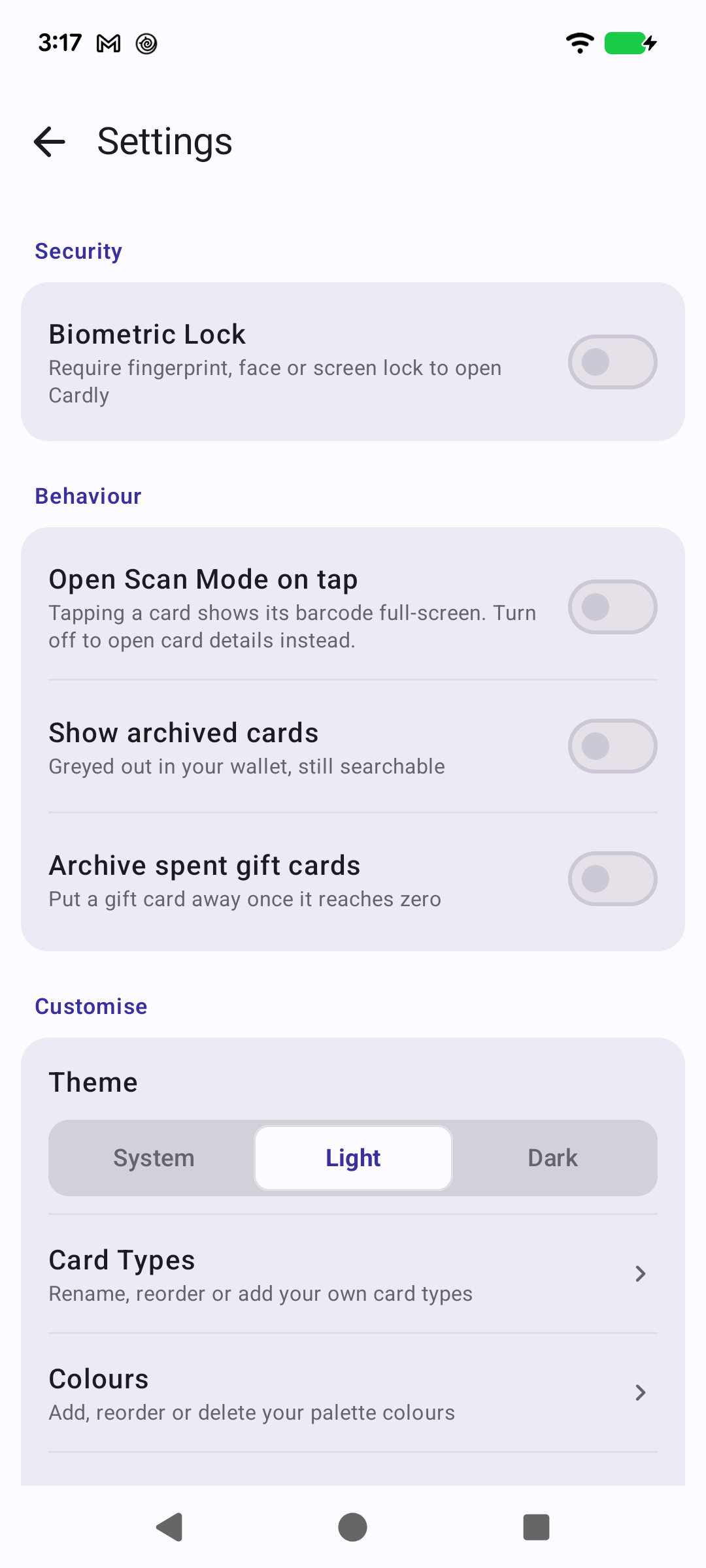
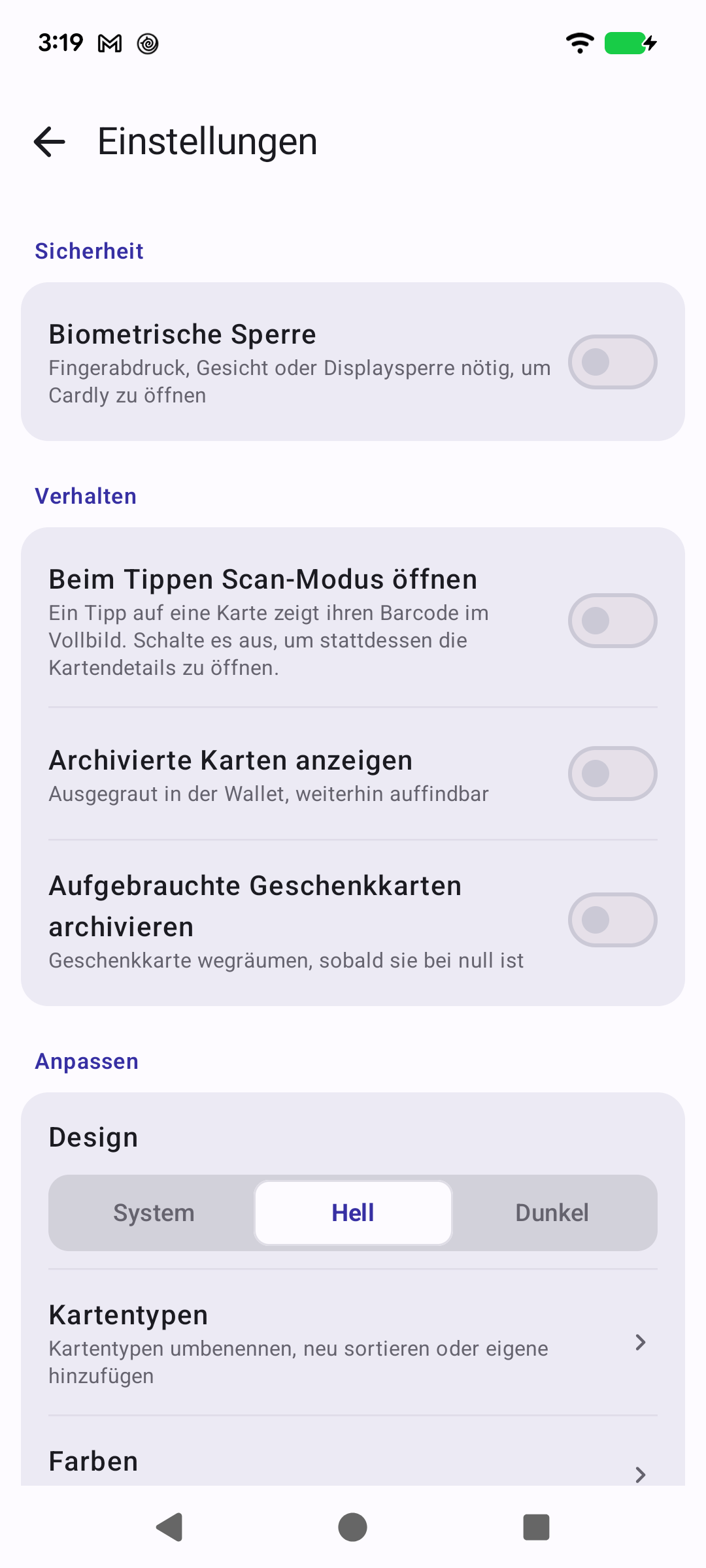
Every setting explained — the biometric lock, what a tap does, archiving, themes, card types, colours, the currency symbol, and Backup & Restore.Jede Einstellung erklärt — biometrische Sperre, Verhalten beim Tippen, Archivieren, Designs, Kartentypen, Farben, Währungssymbol sowie Sicherung & Wiederherstellung.
Quick start
Settings is behind the gear icon in the top corner of your wallet. Nothing in here needs changing for Cardly to work — most people set the theme once and never come back. It is worth a read anyway, because two or three of these change how the app feels day to day.
Biometric Lock — requires your fingerprint, face, or screen lock before Cardly will open. Off by default. Worth turning on: your card numbers, gift-card PINs and balances all sit behind this one switch, and anyone who picks up an unlocked phone can otherwise read them. It uses whatever your phone already uses, so there is no separate passcode to remember. This is a Premium feature.
Behaviour
Open Scan Mode on tap — decides what tapping a card in your wallet does. On, and you go straight to the full-screen barcode, which is what you want standing at a till. Off, and you land on the card screen instead, with the barcode, linked gift cards and colours all in view. Turn it off while you are setting cards up, and on once you are just using them.
Show archived cards — brings archived cards back into the wallet, greyed out. Leave it off for a tidy wallet; turn it on when you are looking for something you archived a while ago. Archived cards stay searchable either way, so archiving never actually hides a card from you — it just gets it out of the scroll.
Archive spent gift cards — files a gift card away automatically the moment its balance hits zero. Handy if you use a lot of gift cards, because used-up ones stop piling up without you having to remember to delete anything. Leave it off if you would rather keep spent cards visible.
Customise
Theme — System, Light, or Dark. System follows your phone, so Cardly turns dark when everything else does. Worth knowing: Scan Mode is always on a dark backdrop whatever you pick here, because that is what reads best under a scanner.
Card Types — opens the list of card types, where you can rename them, drag them into a different order, or add your own. The order here is the order the groups appear in your wallet, so it is the quickest way to get your most-used cards nearer the top. See the Card Types page for the detail.
Colours — the palette you pick card colours from. Add colours, reorder them, or delete ones you never use. If you like matching cards to the real thing, adding the two or three brand colours you use most makes adding a card quicker.
Currency Symbol — the symbol shown before every gift-card balance. Set it once and every gift card follows. This is display only; it does not convert anything.
Premium
Cardly Premium — where your purchase stands. Before you buy, this takes you to the Premium screen; once you have bought it, it simply reads “Purchased — thank you”. If you have just moved to a new phone and it still offers you the purchase, use Restore on the Premium screen rather than paying a second time.
System
Backup & Restore — make a Google Drive backup of your wallet, or restore one onto a new phone. This is the Premium feature that matters most: without a backup your cards do not travel. Worth doing once you have added your cards, and again whenever you have added a few more. See the backup notes for what does and does not leave your phone.
Help & Support — links out to the Help Guide and the Screen Guide (the pages you are reading now), plus Share App and More Apps by Woohoo.
About — the app version, links to the Privacy Policy and Terms of use, and Delete all data. Worth knowing where the version number is: if you ever report a problem, it is the first thing we will ask for.
Delete all data does exactly what it says — it removes every card, balance and transaction from the device in one go. There is no undo. If there is any chance you will want the wallet back, take a backup first.
Schnellstart
Die Einstellungen erreichen Sie über das Zahnrad oben in Ihrer Brieftasche. Nichts davon muss geändert werden, damit Cardly funktioniert — die meisten stellen einmal das Design ein und kommen nie wieder. Ein Blick lohnt sich trotzdem, denn zwei oder drei davon verändern spürbar, wie sich die App im Alltag anfühlt.
Sicherheit, Verhalten und Anpassen — Design, Kartentypen, Farben, Währungssymbol.
Weiter unten: was jede Einstellung tatsächlich bewirkt.
Tiefer eintauchen
Sicherheit
Biometrische Sperre — verlangt Fingerabdruck, Gesicht oder Bildschirmsperre, bevor Cardly sich öffnet. Standardmäßig aus. Das Einschalten lohnt sich: Kartennummern, PINs von Geschenkkarten und Guthaben hängen alle an diesem einen Schalter, und wer ein entsperrtes Telefon in die Hand nimmt, kann sie sonst lesen. Verwendet wird, was Ihr Telefon ohnehin nutzt — es gibt also keinen zusätzlichen Code zu merken. Dies ist eine Premium-Funktion.
Verhalten
Scan-Modus beim Tippen öffnen — legt fest, was ein Tippen auf eine Karte bewirkt. Aktiviert gelangen Sie direkt zum bildschirmfüllenden Barcode, was Sie an der Kasse wollen. Deaktiviert landen Sie auf dem Kartenbildschirm, mit Barcode, verknüpften Geschenkkarten und Farben im Blick. Beim Einrichten ausschalten, beim Benutzen einschalten.
Archivierte Karten anzeigen — holt archivierte Karten ausgegraut zurück in die Brieftasche. Für eine aufgeräumte Ansicht ausgeschaltet lassen; einschalten, wenn Sie etwas suchen, das Sie vor Längerem archiviert haben. Archivierte Karten bleiben ohnehin durchsuchbar — Archivieren versteckt eine Karte also nie wirklich, es nimmt sie nur aus der Liste.
Aufgebrauchte Geschenkkarten archivieren — legt eine Geschenkkarte automatisch ab, sobald ihr Guthaben null erreicht. Praktisch, wenn Sie viele Geschenkkarten nutzen: Verbrauchte sammeln sich nicht mehr an, ohne dass Sie ans Löschen denken müssen. Ausgeschaltet lassen, wenn Sie aufgebrauchte Karten lieber sehen möchten.
Anpassen
Design — System, Hell oder Dunkel. „System" folgt Ihrem Telefon, Cardly wird also dunkel, wenn alles andere es auch wird. Gut zu wissen: Der Scan-Modus hat immer einen dunklen Hintergrund, unabhängig von dieser Einstellung — so liest ihn der Scanner am besten.
Kartentypen — öffnet die Liste der Kartentypen: umbenennen, per Ziehen neu anordnen oder eigene hinzufügen. Die Reihenfolge hier ist auch die Reihenfolge der Gruppen in Ihrer Brieftasche und damit der schnellste Weg, häufig genutzte Karten nach oben zu holen. Details auf der Seite Kartentypen.
Farben — die Palette, aus der Sie Kartenfarben wählen. Farben ergänzen, sortieren oder selten genutzte entfernen. Wenn Sie Karten gern den echten nachempfinden, macht das Hinterlegen der zwei, drei häufigsten Markenfarben das Anlegen schneller.
Währungssymbol — das Symbol vor jedem Geschenkkarten-Guthaben. Einmal einstellen, alle Geschenkkarten folgen. Reine Anzeige; es wird nichts umgerechnet.
Premium
Cardly Premium — zeigt den Stand Ihres Kaufs. Vor dem Kauf gelangen Sie hier zum Premium-Bildschirm; nach dem Kauf steht dort schlicht „Gekauft — vielen Dank“. Wenn Sie gerade auf ein neues Telefon gewechselt sind und der Kauf noch angeboten wird, nutzen Sie Wiederherstellen auf dem Premium-Bildschirm, statt ein zweites Mal zu bezahlen.
System
Sicherung & Wiederherstellung — erstellt eine Google-Drive-Sicherung Ihrer Brieftasche oder spielt eine auf einem neuen Telefon zurück. Das ist die wichtigste Premium-Funktion: Ohne Sicherung ziehen Ihre Karten nicht mit um. Am besten einmal, nachdem Sie Ihre Karten angelegt haben, und erneut, wenn einige dazugekommen sind. Siehe die Hinweise zur Sicherung, was Ihr Telefon verlässt und was nicht.
Hilfe & Support — führt zum Hilfe-Leitfaden und zur Bildschirmanleitung (den Seiten, die Sie gerade lesen), außerdem zu App teilen und Weitere Apps von Woohoo.
Über — die App-Version, Links zu Datenschutzerklärung und Nutzungsbedingungen sowie Alle Daten löschen. Gut zu wissen, wo die Versionsnummer steht: Wenn Sie ein Problem melden, fragen wir zuerst danach.
Alle Daten löschen tut genau das — es entfernt jede Karte, jedes Guthaben und jede Buchung in einem Zug vom Gerät. Ein Rückgängig gibt es nicht. Wenn Sie die Brieftasche später vielleicht noch brauchen, erstellen Sie vorher eine Sicherung.